How to Extract Audio from a Video (and Which Format to Save It In)
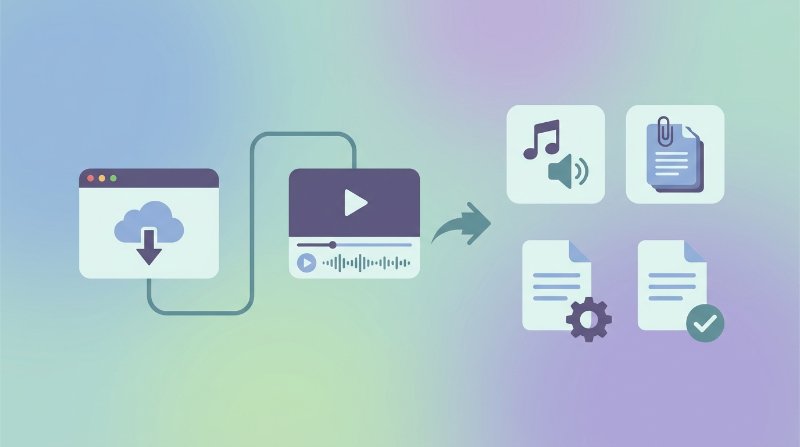
Sometimes the video is just the container. What you actually need is the sound inside it.
Maybe you recorded a lecture on your phone and only want the audio to run through a transcription tool. Maybe a friend sent you a video of a song you love and you want an MP3 you can put on your phone. Maybe you filmed a voice memo as a video by accident and now you need the audio file for a podcast edit. These are all the same technical job — strip the audio track out of the video container and save it as a standalone file — and it takes about 30 seconds to do.
How to Extract Audio from a Video on Filuni
Go to the extract audio from a video tool on Filuni. No account needed, no install, no file size timer counting down in the corner.
- Click Choose File (or drag and drop your video onto the upload zone). MP4, MOV, AVI, MKV, WebM, and most common video formats are accepted.
- Pick your output format — MP3, WAV, or M4A — and set a bitrate if you want control over file size.
- Hit Extract. Processing usually takes a few seconds for a short clip, up to a minute or so for a long video.
- Download the audio file when it appears.
The video file is deleted from the server automatically after processing. If you just want a quick grab and do not need to tweak quality settings, the defaults (MP3 at 192 kbps) work fine for most purposes.
Which Audio Format to Save — MP3, WAV, or M4A?
The short answer: MP3 for almost everything, WAV if you are handing the file to a professional audio editor, M4A if it is going into Apple ecosystem apps.
Here is the practical breakdown:
| Format | File size | Quality ceiling | Best for |
|---|---|---|---|
| MP3 | Small (128–320 kbps) | Good — imperceptible at 192+ kbps for speech | Podcasts, music clips, general use, phone storage |
| WAV | Large (10–50× an MP3) | Lossless — full original quality | Editing in Audacity / Premiere, archiving |
| M4A | Small, similar to MP3 | Slightly better than MP3 at the same bitrate | Apple devices, iTunes, voice memos |
On bitrate: for speech (lectures, voice memos, interviews) 128 kbps MP3 is enough and keeps the file tiny. For music you will start to notice compression artifacts below 192 kbps on headphones, so use 256 or 320 if storage is not a concern. WAV has no bitrate selector because it is uncompressed — you get everything or nothing.
Quality Reality Check: You Can't Add What the Video Never Had
This is the thing people sometimes discover only after downloading. If the original video was recorded at a low audio bitrate — say, a screen recording with system audio captured at 96 kbps, or a phone video shot in a noisy room — saving the extracted audio as WAV or 320 kbps MP3 will not make it sound better. You will just get a bigger file with the same underlying quality.
Audio quality is locked at the source. Extraction only unpacks what is already there; it does not upsample, denoise, or enhance. If the video has muffled speech or tinny music, the extracted audio will too. Tools that claim to 'enhance' extracted audio are doing separate signal processing — that is a different step entirely.
The practical implication: if you are extracting audio to transcribe it, low source quality will hurt transcription accuracy regardless of the output format you choose. If the video audio is genuinely bad, run it through a noise-reduction step after extracting.
FAQ
Will the video file be affected when I extract the audio?
No. Extraction is a read-only operation on the original — it copies the audio track out and packages it as a new file. Your video stays exactly as it was. If you want the video with no audio (a silent clip), that is a separate operation called 'mute video' or 'remove audio track'.
Why is my extracted MP3 much smaller than the original video?
Because video files carry both a video stream and an audio stream, and video is the heavier of the two by a wide margin. A 100 MB MP4 might contain only 4–8 MB worth of audio. Stripping the video stream leaves just that small audio portion, which is why the output file looks disproportionately small.
Can I extract audio from a YouTube video I downloaded?
Yes — if you have downloaded the video file to your device, the tool treats it like any other MP4 or WebM. Upload it and extract normally. What you do with the resulting audio is your responsibility under copyright law; extracting audio from content you do not own for redistribution is not a fair-use exception.
The extracted audio is out of sync with what I remember — is that a tool bug?
Unlikely. Sync issues in extracted audio usually trace back to the source video having a variable frame rate (common in screen recordings and some phone videos) or a container that uses a non-standard time base. The audio track itself is correct; it is the video that was encoded oddly. If you need a perfectly synced reference, extract at the same time you trim the video rather than re-syncing later.
Try Filuni's free tools
Everything in this article — plus 120+ more tools. Free, no signup, right in your browser.