How to Convert Audio Formats: MP3, WAV, FLAC, M4A, AAC, and OGG Explained
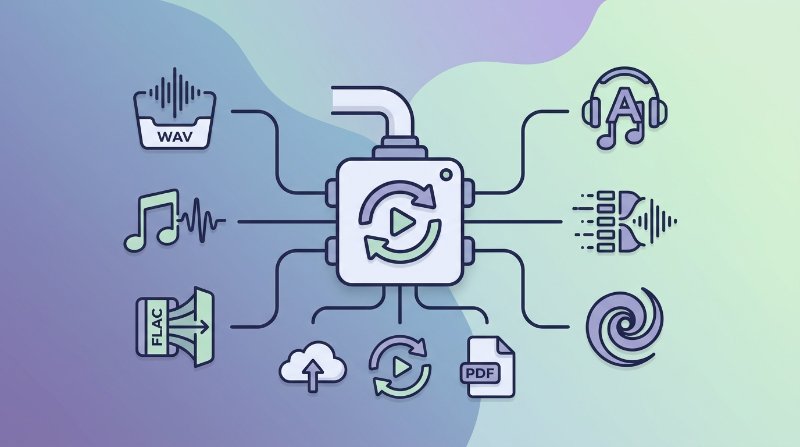
Which audio format should you use?
Before converting anything, it helps to know what you are actually converting to — and why. Pick the wrong format and you either bloat a podcast upload to 300 MB or quietly destroy the dynamic range of a recording you spent hours editing.
| Format | Type | Typical use | Rough file size (3-min song) |
|---|---|---|---|
| MP3 | Lossy compressed | Universal playback, streaming, sharing | 3–8 MB |
| WAV | Uncompressed PCM | Audio editing, broadcast, DAW projects | ~30 MB |
| FLAC | Lossless compressed | Archiving, audiophile listening | 15–25 MB |
| M4A / AAC | Lossy compressed | Apple ecosystem, efficient mobile audio | 3–6 MB |
| OGG (Vorbis) | Lossy compressed | Open-source apps, games, web audio | 3–7 MB |
MP3 remains the safest bet for sharing because every device and app plays it. At 192 kbps it sounds fine for most listening; at 320 kbps the difference from lossless is nearly inaudible for most people. WAV is the standard inside a recording or editing workflow — no decoder overhead, perfect sample accuracy, but the file size is brutal for anything you plan to distribute. FLAC gives you the same audio data as WAV at roughly half the size, making it the go-to for archiving a vinyl rip or a high-res download you paid for. M4A (which usually contains an AAC audio stream) is Apple's default: it sounds slightly better than MP3 at the same bitrate and works seamlessly in iTunes, Final Cut, and iOS. OGG sees less general use but is the default format in several game engines and open-source media players like VLC and Audacity exports.
How to convert audio formats on Filuni
Filuni's convert audio formats tool handles all five formats above with no account, no time limits, and no watermarks. Here is the process:
- Open the tool. Go to the audio converter page. You will see a drag-and-drop upload area.
- Upload your file. Drag a file in or click to browse. Supported inputs: MP3, WAV, FLAC, M4A, AAC, OGG. Maximum size depends on your browser, but files up to several hundred MB work reliably.
- Choose the output format. Select the target from the dropdown — MP3, WAV, FLAC, M4A, or OGG.
- Set the bitrate (for lossy outputs). If you are converting to MP3, M4A, or OGG, you can pick a bitrate. 128 kbps for voice or podcasts, 192–256 kbps for music, 320 kbps if storage is not a concern.
- Convert and download. Click Convert, wait a few seconds, and download the result. The server deletes your file after processing.
That is the whole flow. No software to install, no FFmpeg command to memorize.
Converting lossy to lossless will not restore quality
This is the most common misconception in audio conversion. If you take an MP3 — already lossy — and convert it to FLAC or WAV, you get a lossless container holding a degraded signal. The file grows dramatically in size but the audio quality stays exactly what it was in the MP3. You cannot un-discard data that was thrown away during the original encode.
The practical rule: convert lossy-to-lossy only when the target format is required (say, a platform that only accepts OGG). Otherwise, go back to the original uncompressed or lossless source and encode from there. If you no longer have the original, the MP3 is your master — keep it at its current bitrate rather than re-encoding to another lossy format, which adds a second round of quality loss.
Lossless-to-lossless conversion (WAV to FLAC, FLAC to WAV) is always safe. You are just changing the container or compression method; the audio data is bit-identical.
Bitrate basics: 128 vs 192 vs 320 kbps
Bitrate is the amount of audio data per second. Higher means more detail preserved — but diminishing returns set in fast.
- 128 kbps — Good enough for speech, podcasts, and background music. Noticeable artifacts on cymbal hits and complex mixes if you listen closely.
- 192 kbps — A solid middle ground. Most listeners cannot distinguish this from 320 kbps on consumer headphones. Recommended default for music.
- 256 kbps — Apple's AAC default for iTunes purchases. Transparent for virtually all listening scenarios.
- 320 kbps — The ceiling for MP3. About twice the file size of 192 kbps with marginal audible benefit except on very high-end playback equipment.
For a one-hour podcast at 128 kbps mono MP3, expect roughly 55 MB. The same hour at 320 kbps stereo is around 140 MB. Pick based on what your audience will actually notice, not just what looks impressive in the settings.
FAQ
Can I convert a YouTube video's audio to MP3 with this tool?
The audio converter accepts audio files you upload — it does not download from YouTube or other platforms. You would need to extract the audio separately first, then run it through the converter to change formats.
Is FLAC truly lossless, or does it still compress audio?
FLAC uses lossless compression, similar to how ZIP compresses a document without losing any data. When you decode a FLAC file, you get back the exact original PCM samples — bit-for-bit identical to the WAV source. No audio information is discarded, unlike MP3 or AAC.
Which format should I use to send audio to a professional audio editor?
WAV (uncompressed, 44.1 kHz or 48 kHz, 16- or 24-bit) is the safest choice. Every DAW reads it natively, there is no decoder dependency, and there is no ambiguity about what the editor is hearing. FLAC is also acceptable and saves bandwidth, but confirm with the editor first — some older tools have limited FLAC support.
Will converting MP3 to AAC improve the sound quality?
No. AAC is a more efficient codec than MP3, but 'more efficient' means it achieves similar quality at a lower bitrate — it cannot retroactively improve audio that was already compressed with MP3. Converting MP3 to AAC at the same or lower bitrate will likely sound slightly worse than the original MP3 due to the second encode pass.
Try Filuni's free tools
Everything in this article — plus 120+ more tools. Free, no signup, right in your browser.